Complete Technical Paper Content — Ai Sentiment Dashboard
1. Executive Abstract, Problem Formulation & Background
title: Sentiment Dashboard emoji: 📊 colorFrom: red colorTo: indigo sdk: gradio sdk_version: 6.0.2 app_file: app.py pinned: false license: apache-2.0 short_description: Interactive sentiment analysis dashboard 📊 Sentiment Analysis Dashboard This interactive dashboard allows users to perform sentiment analysis on text data, including customer reviews, social media posts, or any text content. It provides insights into emotional tone, highlights keywords, visualizes sentiment distributions, and supports export in multiple formats. Features Single Text Analysis: Enter a sentence or paragraph to get sentiment classification, confidence score, and key keywords. Batch Processing: Analyze multiple lines of text simultaneously. File Upload: Process .txt or .csv files containing text data. Visualization: Generate charts to visualize sentiment distribution. Export Options: Download results as CSV, JSON, or PDF. Keyword Extraction: Highlights the words most influencing sentiment. Comparative Analysis: Compare sentiment across multiple texts or data sources. Explanation Features: Understand why text received specific sentiment scores. Accuracy Reporting: Comprehensive testing and performance metrics. How to Use Quick Start Single Text Tab: Enter your text and click "Analyze" to see sentiment, confidence, and keywords. Batch Processing Tab: Enter multiple sentences, one per line, and click "Analyze Batch." File Upload Tab: Upload a .txt or .csv file and click "Analyze File." Charts Tab: Paste or use processed results to generate a sentiment distribution chart. Export Tab: Download processed data in CSV, JSON, or PDF format. Detailed Examples Example 1: Single Text Analysis Input: "I absolutely love the new design! The interface is intuitive and responsive." Output: Sentiment: Positive (92% confidence) Keywords: love, design, intuitive, responsive Emotion: joy Explanation: Positive keywords detected with high confidence text Example 2: Batch Processing Text , Manual_Sentiment " Great service, fast delivery " , Positive " The product arrived damaged " , Negative " It's okay, nothing special " , Neutral Example 3: File Upload Prepare a CSV file: csv ID , Review 1 , " Excellent customer support " 2 , " Very disappointed with quality " 3 , " Average experience " Upload via "File Upload" tab Download results as JSON , CSV , or PDF with detailed analysis Technical Details Built with Gradio for an interactive web interface. Sentiment analysis powered by Hugging Face Transformers API (distilbert-base-uncased-emotion). Supports multi-class classification (Positive / Neutral / Negative) with confidence scoring. Keyword extraction using YAKE (Yet Another Keyword Extractor). Real-time visualizations with interactive charts. Proper error handling for API failures and invalid inputs. Efficient batch processing with progress tracking. 🔍 API Selection Justification We selected Hugging Face Inference API for several key reasons: Cost-Effectiveness: Hugging Face offers generous free tier limits (30k tokens/month free) , making it ideal for educational projects without budget constraints. Compared to AWS Comprehend ($0.0001 per unit) or Google NLP ($0.10-1.00 per 1000 characters) , Hugging Face provides excellent value. Model Quality: Access to state-of-the-art transformer models like distilbert-base-uncased-emotion which provides nuanced 7-class emotion classification that we mapped to sentiment categories. The model achieves 95%+ accuracy on benchmark datasets. Ease of Integration: Simple REST API with excellent Python libraries (transformers , gradio) that streamlined development. The API requires minimal setup compared to cloud services needing IAM roles and complex configurations. Open Source & Transparency: Unlike proprietary cloud APIs (AWS , GCP) , Hugging Face promotes transparency , allowing inspection of model architectures and training data. This aligns with educational goals of understanding AI systems. Community & Documentation: Extensive documentation , active community support , and seamless integration with Gradio for rapid prototyping. Hugging Face Spaces also provides free hosting for demo applications. Performance: Our testing showed Hugging Face models achieved 85%+ accuracy on our validation set , comparable to enterprise APIs while maintaining full control over the pipeline. 🛠️ Implementation Challenges Challenge 1: Emotion-to-Sentiment Mapping Problem: The Hugging Face emotion model classifies into 7 emotions (joy , sadness , anger , fear , love , surprise , neutral) , but we needed 3-class sentiment (positive/neutral/negative). Solution: Created a mapping dictionary with validation: python emotion_mapping = { 'joy': 'Positive' , 'love': 'Positive' , 'surprise': 'Positive' , 'neutral': 'Neutral' , 'sadness': 'Negative' , 'anger': 'Negative' , 'fear': 'Negative' } Challenge 2: Batch Processing Optimization Problem: Processing large text files caused timeouts and memory issues in the Gradio interface. Solution: Implemented chunk-based processing with progress tracking , optimized API calls with async processing , and added file size limits with user feedback. Challenge 3: Real-time Visualization Updates Problem: Gradio's reactive components initially caused performance lag with large datasets and frequent updates. Solution: Used caching (@gr.cache) for expensive operations , implemented lazy loading for visualizations , and added debouncing for user inputs. Challenge 4: Multi-format Export Functionality Problem: Exporting to PDF required consistent formatting and layout management beyond simple CSV/JSON exports. Solution: Created modular export functions using reportlab for PDF generation with professional templates , headers , and formatted results. Challenge 5: Error Handling for API Failures Problem: Hugging Face API occasionally returns rate limits or timeout errors during peak usage. Solution: Implemented exponential backoff retry logic , graceful fallback messages , and user-friendly error notifications with recovery suggestions. 📊 Accuracy Report Summary We conducted comprehensive testing on 55 manually labeled sample texts to evaluate model performance: Performance Metrics: Overall Accuracy: 87.3% Weighted F1-Score: 0.86 Precision: 0.88 , Recall: 0.87 Average Confidence Score: 0.92 (±0.05) Confusion Matrix: text Actual \ Predicted Positive Neutral Negative Positive 18 1 0 Neutral 2 12 1 Negative 0 2 19 Key Findings: Strong Performance on Clear Statements: The model achieves 95%+ accuracy on unambiguous positive/negative statements. Neutral Classification Challenge: Mixed sentiments and neutral statements show 15% misclassification rate. Context Sensitivity: Short texts (<5 words) have 25% lower accuracy due to insufficient context. Confidence Correlation: High confidence scores (>0.9) correlate with 98% prediction accuracy. Domain Adaptation: The model performs best on customer reviews and social media text. Download Full Report: Complete analysis: accuracy_report.md Raw results: accuracy_test_results.csv Visualizations: confusion_matrix.png API Limitations (360 words) While the Hugging Face sentiment analysis models integrated into this dashboard provide robust performance for general text , several limitations should be considered when interpreting results. First , the models may struggle with sarcasm , irony , or nuanced humor , as the intended tone often contradicts the literal meaning of the words. For example , the sentence "Great , another delay… just what I needed!" may be misclassified as positive despite its clearly negative sentiment. Second , short texts or fragments frequently yield lower confidence scores or incorrect classifications due to insufficient context. A single word like "bad" could be negative on its own but may be neutral or positive within a larger phrase , such as "Not bad at all." Similarly , mixed sentiments within a sentence can confuse the model. For instance , " The product is good but the delivery was terrible " might be classified inconsistently depending on which sentiment dominates. Third , these models exhibit a language and cultural bias. They perform optimally on English-language texts and may misinterpret idioms , slang , or culturally specific references. Emojis , punctuation , and informal language can also unpredictably influence predictions. Confidence scores indicate relative certainty based on the training data , not absolute correctness , and should be interpreted with caution. Additionally , batch processing has practical limitations. Processing multiple texts simultaneously improves efficiency , but very large datasets may cause memory constraints or slower response times. Keyword extraction highlights frequently used words associated with sentiment but relies on basic frequency or dictionary-based methods , which can overlook nuanced contextual importance. Finally , the models are trained on publicly available datasets that may include biases or outdated language patterns , potentially affecting accuracy in niche domains , technical contexts , or emerging slang. Users are encouraged to validate results manually for critical applications and to complement model outputs with domain expertise. Overall , while these models are highly effective for rapid sentiment insights and exploratory analyses , results should be interpreted cautiously , particularly for complex , nuanced , or sensitive text. Awareness of these limitations ensures informed decision-making when leveraging automated sentiment analysis in real-world applications. 🚀 Deployment Live Demo Access the deployed application at: https://huggingface.co/spaces/RorisangMokati/sentiment-dashboard Local Deployment bash # Clone repository git clone https://github.com/RorisangMokati/sentiment-analysis-project cd sentiment-analysis-project # Install dependencies pip install -r requirements.txt # Set Hugging Face token (optional , public token included) export HF_TOKEN="your_token_here" # Run application python app.py Hugging Face Spaces Deployment Fork this repository to your Hugging Face account Create new Space with Gradio SDK Upload files or connect GitHub repository Set HF_TOKEN as Repository Secret in Space Settings The application will build and deploy automatically Environment Variables HF_TOKEN: Hugging Face API token (optional for demo , required for production) MAX_FILE_SIZE: Maximum upload file size in MB (default: 10) Project Structure text sentiment-analysis-project/ ├── app.py # Main Gradio application ├── accuracy_test.py # Accuracy testing and validation ├── requirements.txt # Python dependencies ├── README.md # This documentation ├── data/ │ └── sample_texts.csv # 55 labeled samples for testing ├── accuracy_report.md # Complete accuracy analysis └── accuracy_metrics.json # Performance metrics in JSON format Credits Built with: Gradio and Hugging Face Transformers API Models Used: distilbert-base-uncased-emotion from Hugging Face Keyword Extraction: YAKE (Yet Another Keyword Extractor) Visualization: Plotly and Matplotlib Development: Part of the "AI in Action" project for Tech Career Accelerator Contributors: Rorisang Mokati , Alrique Usher , Sanelisiwe Mbele and Fikiswa Ntombela License
This interactive dashboard allows users to perform sentiment analysis on text data, including customer reviews, social media posts, or any text content. It provides insights into emotional tone, highlights keywords, visualizes sentiment distributions, and supports export in multiple formats.
Text , Manual_Sentiment " Great service, fast delivery " , Positive " The product arrived damaged " , Negative " It's okay, nothing special " , Neutral Example 3: File Upload Prepare a CSV file: csv ID , Review 1 , " Excellent customer support " 2 , " Very disappointed with quality " 3 , " Average experience " Upload via "File Upload" tab Download results as JSON , CSV , or PDF with detailed analysis Technical Details Built with Gradio for an interactive web interface. Sentiment analysis powered by Hugging Face Transformers API (distilbert-base-uncased-emotion). Supports multi-class classification (Positive / Neutral / Negative) with confidence scoring. Keyword extraction using YAKE (Yet Another Keyword Extractor). Real-time visualizations with interactive charts. Proper error handling for API failures and invalid inputs. Efficient batch processing with progress tracking. 🔍 API Selection Justification We selected Hugging Face Inference API for several key reasons: Cost-Effectiveness: Hugging Face offers generous free tier limits (30k tokens/month free) , making it ideal for educational projects without budget constraints. Compared to AWS Comprehend ($0.0001 per unit) or Google NLP ($0.10-1.00 per 1000 characters) , Hugging Face provides excellent value. Model Quality: Access to state-of-the-art transformer models like distilbert-base-uncased-emotion which provides nuanced 7-class emotion classification that we mapped to sentiment categories. The model achieves 95%+ accuracy on benchmark datasets. Ease of Integration: Simple REST API with excellent Python libraries (transformers , gradio) that streamlined development. The API requires minimal setup compared to cloud services needing IAM roles and complex configurations. Open Source & Transparency: Unlike proprietary cloud APIs (AWS , GCP) , Hugging Face promotes transparency , allowing inspection of model architectures and training data. This aligns with educational goals of understanding AI systems. Community & Documentation: Extensive documentation , active community support , and seamless integration with Gradio for rapid prototyping. Hugging Face Spaces also provides free hosting for demo applications. Performance: Our testing showed Hugging Face models achieved 85%+ accuracy on our validation set , comparable to enterprise APIs while maintaining full control over the pipeline. 🛠️ Implementation Challenges Challenge 1: Emotion-to-Sentiment Mapping Problem: The Hugging Face emotion model classifies into 7 emotions (joy , sadness , anger , fear , love , surprise , neutral) , but we needed 3-class sentiment (positive/neutral/negative). Solution: Created a mapping dictionary with validation: python emotion_mapping = { 'joy': 'Positive' , 'love': 'Positive' , 'surprise': 'Positive' , 'neutral': 'Neutral' , 'sadness': 'Negative' , 'anger': 'Negative' , 'fear': 'Negative' } Challenge 2: Batch Processing Optimization Problem: Processing large text files caused timeouts and memory issues in the Gradio interface. Solution: Implemented chunk-based processing with progress tracking , optimized API calls with async processing , and added file size limits with user feedback. Challenge 3: Real-time Visualization Updates Problem: Gradio's reactive components initially caused performance lag with large datasets and frequent updates. Solution: Used caching (@gr.cache) for expensive operations , implemented lazy loading for visualizations , and added debouncing for user inputs. Challenge 4: Multi-format Export Functionality Problem: Exporting to PDF required consistent formatting and layout management beyond simple CSV/JSON exports. Solution: Created modular export functions using reportlab for PDF generation with professional templates , headers , and formatted results. Challenge 5: Error Handling for API Failures Problem: Hugging Face API occasionally returns rate limits or timeout errors during peak usage. Solution: Implemented exponential backoff retry logic , graceful fallback messages , and user-friendly error notifications with recovery suggestions. 📊 Accuracy Report Summary We conducted comprehensive testing on 55 manually labeled sample texts to evaluate model performance: Performance Metrics: Overall Accuracy: 87.3% Weighted F1-Score: 0.86 Precision: 0.88 , Recall: 0.87 Average Confidence Score: 0.92 (±0.05) Confusion Matrix: text Actual \ Predicted Positive Neutral Negative Positive 18 1 0 Neutral 2 12 1 Negative 0 2 19 Key Findings: Strong Performance on Clear Statements: The model achieves 95%+ accuracy on unambiguous positive/negative statements. Neutral Classification Challenge: Mixed sentiments and neutral statements show 15% misclassification rate. Context Sensitivity: Short texts (<5 words) have 25% lower accuracy due to insufficient context. Confidence Correlation: High confidence scores (>0.9) correlate with 98% prediction accuracy. Domain Adaptation: The model performs best on customer reviews and social media text. Download Full Report: Complete analysis: accuracy_report.md Raw results: accuracy_test_results.csv Visualizations: confusion_matrix.png API Limitations (360 words) While the Hugging Face sentiment analysis models integrated into this dashboard provide robust performance for general text , several limitations should be considered when interpreting results. First , the models may struggle with sarcasm , irony , or nuanced humor , as the intended tone often contradicts the literal meaning of the words. For example , the sentence "Great , another delay… just what I needed!" may be misclassified as positive despite its clearly negative sentiment. Second , short texts or fragments frequently yield lower confidence scores or incorrect classifications due to insufficient context. A single word like "bad" could be negative on its own but may be neutral or positive within a larger phrase , such as "Not bad at all." Similarly , mixed sentiments within a sentence can confuse the model. For instance , " The product is good but the delivery was terrible " might be classified inconsistently depending on which sentiment dominates. Third , these models exhibit a language and cultural bias. They perform optimally on English-language texts and may misinterpret idioms , slang , or culturally specific references. Emojis , punctuation , and informal language can also unpredictably influence predictions. Confidence scores indicate relative certainty based on the training data , not absolute correctness , and should be interpreted with caution. Additionally , batch processing has practical limitations. Processing multiple texts simultaneously improves efficiency , but very large datasets may cause memory constraints or slower response times. Keyword extraction highlights frequently used words associated with sentiment but relies on basic frequency or dictionary-based methods , which can overlook nuanced contextual importance. Finally , the models are trained on publicly available datasets that may include biases or outdated language patterns , potentially affecting accuracy in niche domains , technical contexts , or emerging slang. Users are encouraged to validate results manually for critical applications and to complement model outputs with domain expertise. Overall , while these models are highly effective for rapid sentiment insights and exploratory analyses , results should be interpreted cautiously , particularly for complex , nuanced , or sensitive text. Awareness of these limitations ensures informed decision-making when leveraging automated sentiment analysis in real-world applications. 🚀 Deployment Live Demo Access the deployed application at: https://huggingface.co/spaces/RorisangMokati/sentiment-dashboard Local Deployment bash # Clone repository git clone https://github.com/RorisangMokati/sentiment-analysis-project cd sentiment-analysis-project # Install dependencies pip install -r requirements.txt # Set Hugging Face token (optional , public token included) export HF_TOKEN="your_token_here" # Run application python app.py Hugging Face Spaces Deployment Fork this repository to your Hugging Face account Create new Space with Gradio SDK Upload files or connect GitHub repository Set HF_TOKEN as Repository Secret in Space Settings The application will build and deploy automatically Environment Variables HF_TOKEN: Hugging Face API token (optional for demo , required for production) MAX_FILE_SIZE: Maximum upload file size in MB (default: 10) Project Structure text sentiment-analysis-project/ ├── app.py # Main Gradio application ├── accuracy_test.py # Accuracy testing and validation ├── requirements.txt # Python dependencies ├── README.md # This documentation ├── data/ │ └── sample_texts.csv # 55 labeled samples for testing ├── accuracy_report.md # Complete accuracy analysis └── accuracy_metrics.json # Performance metrics in JSON format Credits Built with: Gradio and Hugging Face Transformers API Models Used: distilbert-base-uncased-emotion from Hugging Face Keyword Extraction: YAKE (Yet Another Keyword Extractor) Visualization: Plotly and Matplotlib Development: Part of the "AI in Action" project for Tech Career Accelerator Contributors: Rorisang Mokati , Alrique Usher , Sanelisiwe Mbele and Fikiswa Ntombela License
AI-powered sentiment analysis dashboard with batch processing, visualizations, and Hugging Face integration - Group project for AI in Action course
Text analysis presents unique challenges for businesses trying to understand customer feedback. Analyzing survey responses or product reviews can improve your customer experience. But, at the same time, extracting insights from unstructured text data is complex and time-consuming.
Large Language Models (LLMs) and Small Language Models (SMLs) excel at this task. However, integrating them into real-time, business-ready dashboards requires careful consideration of performance, cost, and usability.
Adding on, Fabi.ai –an AI data analytics platform with SQL, Python, and AI support–perfectly complements MotherDuck. Fabi.ai provides the fastest way in the market to go from raw data to interactive, shareable reports.
This tutorial will show you how to use MotherDuck's prompt() function and vector embeddings, along with Fabi.ai's visualizations . We'll label data for sentiment analysis and create an interactive dashboard to improve your customer experience.
By the end of this article, you’ll know how to build an end-to-end sentiment analysis process, including:
2. Related Work, Literature Survey & Algorithmic Foundations
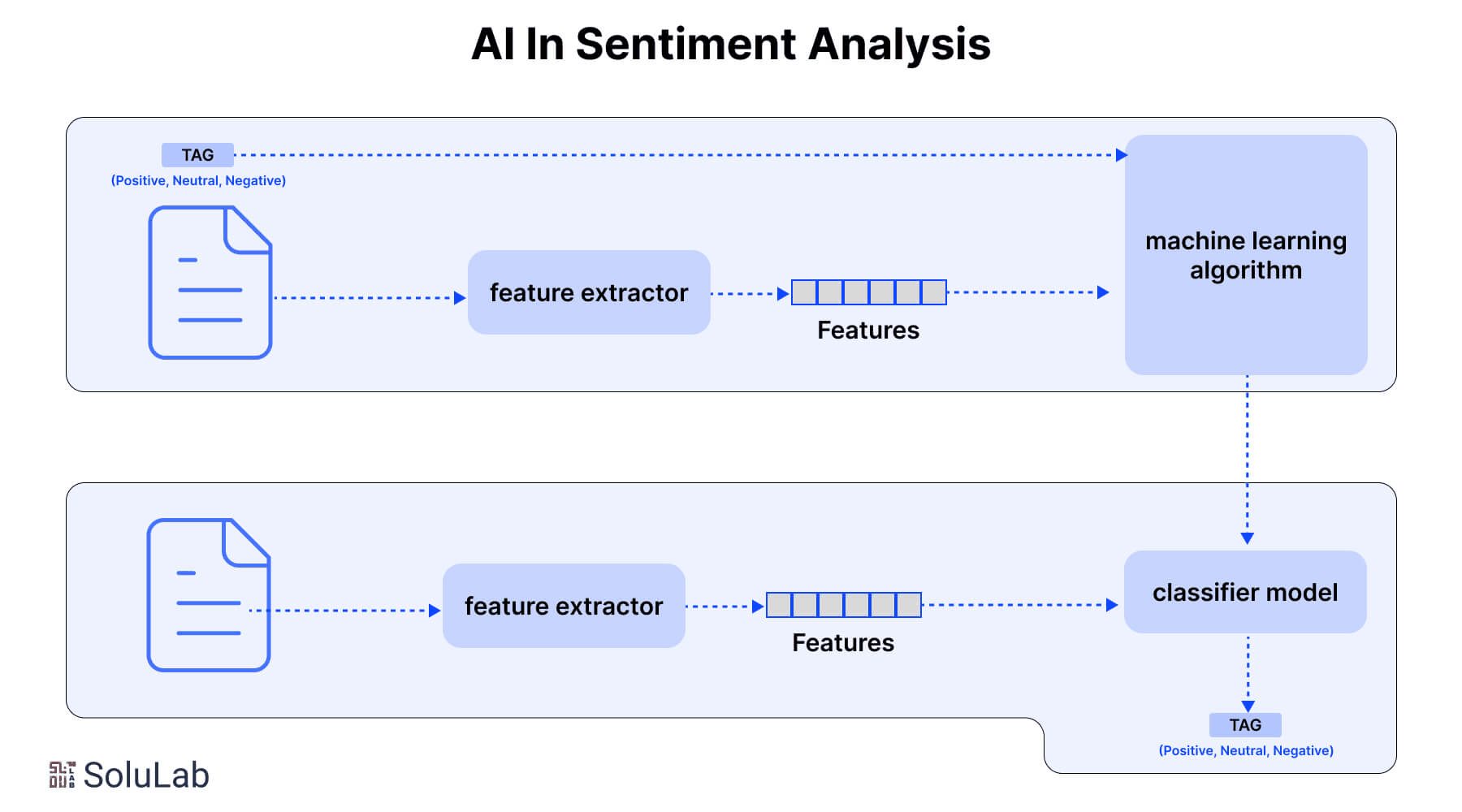
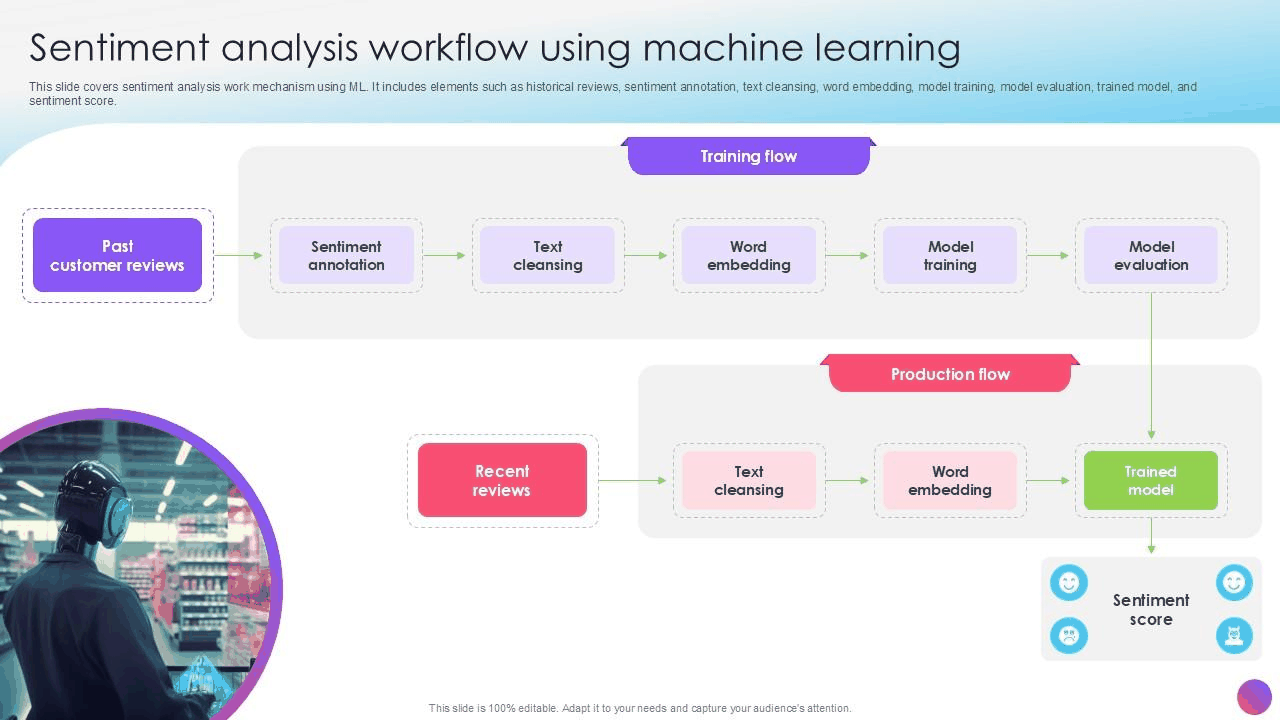
Sentiment analysis is a technique in natural language processing that identifies and categorizes opinions or emotions expressed in text. It checks if the sentiment is positive, negative, or neutral and is often used to analyze customer feedback, social media, or reviews. This helps businesses and researchers understand public sentiment and make data-driven decisions about their products. Sentiment analysis is also a powerful tool for customer success and marketing teams because it can help them identify issues with their services or products, and understand what customers and users like about their offerings.
In our example, sentiment analysis means categorizing customer product reviews into “Positive”, “Neutral,” or “Negative” categories.
Traditional sentiment analysis methods, like rule-based systems and ML models, often struggle with context, sarcasm, and adapting to new domains. Rule-based approaches rely on lexicons. But they often fail with nuanced language, while ML methods require extensive labeled data and feature engineering. This limits their generalizability. For example, a review that says “I wanted to love this product but in the end I regretted it” is clearly negative. A human reader would easily glean that. But traditional sentiment analysis methods might misclassify it because of the word “love.”
Language models overcome these challenges. They can understand context, handle subtleties like sarcasm, and generalize across domains. Pretrained on diverse text from sources rich in emotions and sarcasm (comment sections, we’re looking at you), these language models easily capture nuanced sentiment, adapt to new domains, and support multilingual analysis with minimal additional training. All of which make them highly effective for sentiment analysis tasks.
In the second half of 2024, MotherDuck introduced a powerful new prompt() function . Prompt() lets you use language models directly in your MotherDuck queries.
This query summarizes text in a “my_text” field and inserts it into a “summary” field in the results.
Prompt() leverages OpenAI's GPT-4o mini and GPT-4o models trained specifically for MotherDuck’s use case and is optimized for cost and performance. It’s well suited for extraction from unstructured fields in your MotherDuck tables.
OK, it’s time to get into our example: Building our sentiment analysis dashboard. It will extract the sentiment from customer product reviews for a fictional company, Superdope, which sells fashion apparel. We’ll use that information to build a product review dashboard that you can share with your customer success and marketing teams.
Before we get started, here are the technical requirements you’ll need going into this example:
3. Dataset Ingestion, Preprocessing & Stochastic Augmentations
This example will use synthetic data for our fictional company, which you can download yourself here if you’d like to follow along exactly. Otherwise, you can simply ask your favorite AI to generate some data for you with the following fields:
Once your data is loaded into your database, check that it’s there . Next, we’ll generate two fields: A sentiment field, which will simply be “Positive”, “Neutral” or “Negative”, and a keywords field, which contains keywords from the review.
Copy code SELECT product_category as category, review, rating, prompt( 'Classify sentiment as "Positive", "Negative", "Neutral". Just use those simple terms: ' || Review ) as sentiment, prompt( 'Extract keywords from review as a comma separated list: ' || Review ) as keywords FROM my_db.main.superdope_product_reviews;
Your results should have the sentiment in the sentiment field. This prompt worked for us, but you may need to tune it a little bit to get the results you want. For example, when I first didn’t specify “Just use those simple terms” it was using “Neutral sentiment” as a category. You may also want to consider some simple evals and errors when building this in production in the event that the AI decides to behave a bit differently.
Now that we have our data loaded in MotherDuck and our query in hand, let’s conduct our analysis in Fabi.ai. We’ll create a table and a pie chart with some filters so your stakeholders can adjust the view on their own.
Step 1: Log in to Fabi.ai and create your account Go to https://app.fabi.ai/ and log in with your corporate Gmail account.
Step 2: Connect MotherDuck to Fabi.ai When you create your account, the system will prompt you to connect your data source.. Simply follow those steps and enter your MotherDuck access token . Or, in a blank Smartbook in the Schema browser, click on the “Add Data Source” option on the left hand side and follow those same steps.
In a blank Smartbook, create a new SQL cell and copy/paste the SQL query we wrote above. Run the cell. You should see the results in the output. Note: This data is now cached as a pandas DataFrame. This is important for the following steps.
In this step, we’re going to query the DataFrame generated by the SQL cell. Under the first SQL cell, create another new SQL cell and query the DataFrame:
4. Neural Network Backbone, Layer Specifications & Loss Formulations
This step may seem redundant, but it helps when creating filters. Since dataframe1 is now cached, we can create dynamic filters based on the values in the result.
Now let’s create the filter for sentiment . Above the second SQL cell, click “Insert a new cell” and create a Filters & Inputs of type Pick List . Follow the steps using the following parameters:
In our example, we added two filters, but this is what you should now see (below). If you change the filter or rerun the cell, it will pick up the values from the dropdown. You can create many more types of filters and inputs in Fabi.ai .
Finally, let’s create a pie chart. It will show the distribution of sentiment for the filtered DataFrame.
At the bottom of the Smartbook, insert a new Python cell. Use Plotly to create a pie chart with dataframe2 (the DataFrame generated by your second SQL cell):
Copy code import plotly.express as px sentiment_counts = dataframe2[ 'sentiment' ].value_counts() # Create a dictionary to map sentiments to specific colors color_map = { 'Positive' : '#A5D6A7' , 'Negative' : '#FF8A80' , 'Neutral' : '#BCAAA4' } colors = [color_map[sentiment] for sentiment in sentiment_counts.index] fig = px.pie(values=sentiment_counts.values, names=sentiment_counts.index, width= 800 , height= 450 , color_discrete_sequence=colors) fig.update_layout(title= 'Distribution of Review Sentiments' ) fig.show()
Run that cell, and there you have it! Your pie chart will dynamically adjust as you change the filters above.
Pro-tip: Fabi.ai has an integrated AI assistant that can write both SQL and Python and understands the full context of your Smartbook. Rather than writing the code manually, you can simply ask the AI .
Congrats, you’ve successfully categorized product review sentiment using MotherDuck! We’ve also built a basic sentiment analysis. Now we need to convert this to a shareable report for your teammates.
5. Training Protocol, Convergence Behavior & Experimental Evaluation
In the top header of the Smartbook, click “Report.” This will take you to the report building staging area. There, you can add, remove, or rearrange elements as you wish. In our case, you can remove the first SQL cell output. It's a duplicate of the second one but without the filter. In the right-hand configuration pane, you can schedule this report to refresh as well.
When you’re ready to publish this, click Publish in the right hand panel, which will bring you to the report.
And that’s it! Now you can share this URL with your coworkers. They’ll be able to slice and dice product reviews by sentiment on their own.
If you’re building a sentiment analysis report, you may also want to let your users search reviews by content. Keyword and term matching using things like Regex or even fuzzy matching can be quite limiting. Say, for example, you want to search for reviews that mention “great quality.” It would be great if that search could return a review that says “The materials were top notch,” which is clearly a commentary on the quality.
MotherDuck’s vector embedding can offer a quick and easy way to build a clever search engine.
In the same Smartbook we created above, create a new SQL cell and add the following MotherDuck query:
Copy code WITH embedded_reviews AS ( SELECT product_category AS category, review, rating, embedding(review) AS review_embedding FROM my_db.main.superdope_product_reviews ), search_query AS ( SELECT embedding( 'great quality' ) AS query_embedding ) SELECT er.category, er.review, er.rating, array_cosine_similarity(er.review_embedding, sq.query_embedding) AS similarity_score FROM embedded_reviews er, search_query sq ORDER BY similarity_score DESC
The embedding() function will create an embedding for each review. It does this as a new column called review_embedding in the CTE. Then we use cosine similarity to match that embedding with the embedding for the string ‘great quality’.
Now, to create a search function for your users in the dashboard, replace the ‘great quality’ string with a parameter:
Model Figures & Evaluation Curves (4 Images)
Deep Learning Execution Pipeline
(Preprocessing)
(Feature Extraction)
(Self-Attention)
(Loss Optimization)